
SimConverse AI
Ask how to use SimConverse. Educators can also look up cohort results and draft content for review.
For learners, educators, and admins
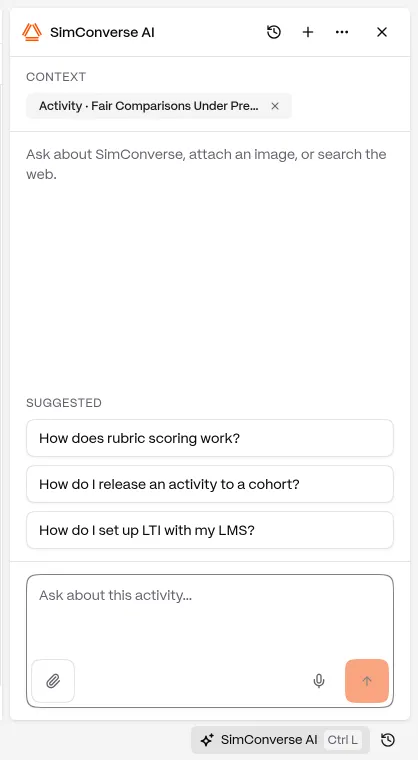
SimConverse AI is the assistant in the app. Use it to get an answer without a search through menus or documentation:
- Learners get answers from the SimConverse documentation without using organisation credits. For example, pick a starter question, attach a screenshot, or ask how to start a practice conversation or fix a microphone problem. Your chats stay saved in Chat history, and the assistant cannot look up your due dates, grades, or course content.
- Educators can ask how a cohort is doing (with interactive charts and tables), draft characters, rubrics, voices, avatars, activities, and Apps, and assign activities.
- Admins can also manage encounters when that feature is on.
The assistant works with your permissions. It reads only the data that you can open in the app. It saves a change only after you approve it.
Open the panel
Section titled “Open the panel”Select SimConverse AI in the bottom-right corner of the app, or press
Cmd+I on macOS (Ctrl+I on Windows and Linux). The panel opens beside the
page on a desktop, or as a sheet on a phone.
The button shows for signed-in users in an organisation with an active plan. A user with no assigned seat cannot open the panel, and it is not available in a session that starts from an LMS.
On a desktop, the panel opens automatically for Admins and Users with Authoring access when they open an activity, character, rubric, section, or app editor. You can close it while you work.
Type a question, use the microphone button in the composer to dictate aloud, or select a Suggested question. If you close the panel, the assistant continues its work and the chat stays. Open the panel again to see the saved messages and results.
Ask questions and look up data
Section titled “Ask questions and look up data”- Answers from this documentation. Answers show numbered citations. Select a citation to read the source and open the documentation page. The sources list below the answer shows all cited pages.
- Your SimConverse data and interactive visuals. For educators and admins, the assistant can read assignments, cohorts, learners, competencies, and insights that their permissions allow. A lookup cannot change data. When a question calls for a summary or comparison, the assistant can render interactive charts, tables, metrics, and forms inside the chat. Open any visual side by side or in an expanded view, and download tables as CSV. To give your own AI assistant the same read-only access, see Connect an AI assistant (MCP).
- The web. Only SuperAdmins can use web search when the documentation does not cover a question. The assistant tells you when an answer comes from outside the SimConverse documentation.
- Screenshots. Attach up to 5 images (PNG, JPEG, or WebP, up to 5 MiB each), for example a screenshot of an error message. Drop the images in the chat, or select Add files in the message field. You can review and remove attachments before you send them. You can attach images only.
Use the page that you have open
Section titled “Use the page that you have open”Ask about “this rubric” or “this character” without entering its name. The assistant uses the page you had open when you selected Send. On Assignments, ask “What should I do next?” to get the same recommendation that the page shows. On a cohort’s activities page, the recommendation is for that cohort. A learner chat answers from the documentation only and does not use the open page.
| Page | Who can ask about it |
|---|---|
| Assignments | Users with Authoring access, cohort managers, and admins |
| An activity, character, rubric, section, or app | Admins and Users with Authoring access |
The assistant reads saved content that you have permission to read. Save app editor changes before you ask the assistant to change that app. It uses the selected saved version.
Draft and change content
Section titled “Draft and change content”To draft and save content, you need the Admin role, or the User role with Authoring access. With either, you can ask the assistant to draft or change characters (including Genius mode and multi-character casts), rubrics, voices, avatars, tasks, activities, and Apps. You can also ask it to assign an activity to a cohort or to selected learners.
The assistant shows each change in Changes. Select Approve and save to save the change, Request changes to send specific revision feedback before saving, or Reject to decline it. An approval request expires after 10 minutes.
See Author content with AI for the steps, for app authoring, and for the review of your own previews.
Draft and save an app
Section titled “Draft and save an app”Request a new app in chat, or select Draft an app or Change this app in an app editor. App authoring requires the Admin role or the User role with Authoring access. You can attach reference screenshots.
Requests from chat and from the editor both start the App authoring agent. You review and save its draft in chat, not in the editor.
The App authoring card shows the background agent’s progress and its separate conversation. The main chat can complete other tasks in the same request while the agent works. It stays active while background work remains, including while the agent waits for your answer or save approval. You cannot send another message during that time. The agent’s result returns to the main chat automatically, so it can continue without another message.
The agent’s questions and save requests appear directly in your main chat, even before its turn ends. Select an option or enter your own answer, then select Send answer. A question pauses only that agent. Review the exact app draft and approve or reject its save request to let the agent continue. Generation alone does not save an app or change the open editor.
Select Stop the Agent on the agent’s card to stop only that agent. The main chat and other agents can continue. The main chat’s Stop generating control cancels its unfinished work and unfinished child agents. It stays available while an agent works.
See Build an app for review, save, and connection recovery steps. Static checks do not prove that the app works in a browser.
Manage your chats
Section titled “Manage your chats”Chat history shows your saved chats, with the newest first. Select a chat to open it. If its tools do not match your current access, you can read it but cannot send a message. Select New chat to start a chat with your current access. App authoring conversations do not appear in this list.
To delete a chat, select Chat options, then Delete chat, and confirm. You cannot delete a chat while the assistant works or waits for your approval.
Nothing is saved twice after a lost connection
Section titled “Nothing is saved twice after a lost connection”A page reload restores the selected chat. A message or a save that SimConverse accepted is not repeated after a lost connection.
- Select Refresh saved state to check the saved work.
- Select Retry same input only when the chat shows that the result of your last message is not confirmed.
- Select Cancel pending work to end a response that is paused. Completed changes stay.
App agents keep their saved questions and pending save reviews after a lost connection. Safe unfinished work can resume. Refresh the saved state before you retry an unconfirmed answer or approval. Retry same input sends the same input, not a new agent request. It does not repeat an accepted decision or a save whose result is unknown.
Stop the assistant
Section titled “Stop the assistant”Select the stop button (Stop generating) in the message field. The assistant then starts no new actions. It does not undo completed changes, and a save that has started can still finish. Check the result of that save in the chat before you ask for the same save again.
Size limits for messages and chats
Section titled “Size limits for messages and chats”- A message can contain up to 1 MiB of text and 5 images.
- A message can include up to 8 pages in Context.
- A chat has a context budget of approximately 200,000 tokens, with no fixed message count. Start a new chat when this budget is full.
- There is no limit on the number of chats that you can keep.
- If one request needs too many steps, the assistant stops. Make the request more specific and try again.
- Chats and images do not expire.
Chats are stored, and only their owner can open them
Section titled “Chats are stored, and only their owner can open them”Do not include protected health information (PHI) in a chat.
The chat history is stored, with a record of each action of the assistant. Images stay in private storage, also after you delete the chat. Only the owner of a chat can open it, in the same organisation.
Admins and Users with Authoring access can open the details of each action with Show exact arguments and Tool result. Data lookups use your current permissions. Content is saved only after your approval.
Private app drafts and their conversations require the Admin role or the User role with Authoring access. Only the chat owner can open them, in the same organisation.
Agentic authoring in SimConverse AI (building modules and Apps) uses plan credits per minute. See Billing, plans, seats, and credits for published usage rates.