
Build an activity
Take learners from preparation through a practice conversation to reflection in one activity, then assign it and use the results to plan what they need next.
For educators
An activity gives learners a clear path towards a learning goal. You can help them prepare, let them practise with a simulated person, and ask them to reflect on what they learned. Keeping these steps in one activity means learners find their instructions, their work, and their feedback in one place.
For example, an activity about a first patient interview could start with a short explanation and questions. The learner then speaks with a patient character. After the conversation, the learner answers questions about what went well and what to change next time.
Open the activity editor
Section titled “Open the activity editor”Activities live under Author in the sidebar, which appears for Admins and for Users with Authoring access. If you do not see it, ask an Admin in your organisation for Authoring access.
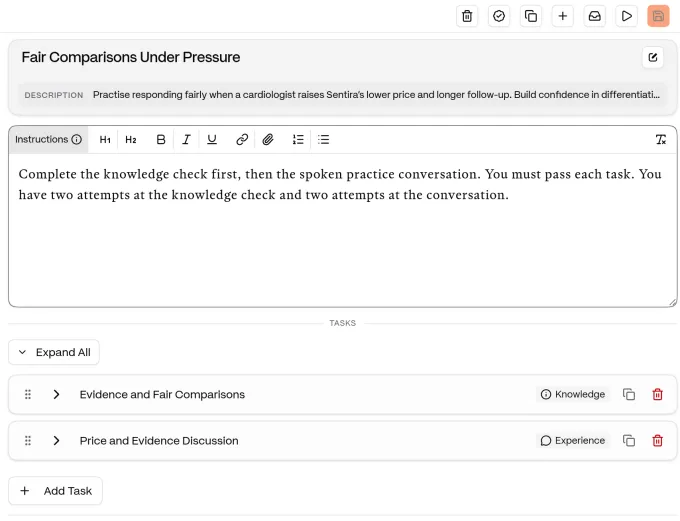
Select Activities, then Author Activity for a new activity, or select an existing activity to open it in the editor.
Give learners a clear starting point
Section titled “Give learners a clear starting point”Choose a name that tells learners what they will practise. Add a description that explains the goal, then write the activity instructions: what learners have to do, what they should prepare, and how you will assess their work. You can type or use the microphone button beside text fields to dictate content aloud.
Build the path with Add Task. There are two types of task: Knowledge and Experience. Knowledge tasks hold reading and questions. Experience tasks let learners practise in a simulated conversation. Reflection is a ready-made Knowledge question set that you can use after practice.
Give each task a name that says what it is for, and put the tasks in the order you want learners to follow. You can drag a task by its handle or use its move controls. The order is a suggestion to learners, not a lock: they can open a later task before they finish an earlier one.
Help learners prepare with Knowledge
Section titled “Help learners prepare with Knowledge”A Knowledge task can combine content and questions in one place. Use content blocks for formatted reading material, embedded images, video, or audio. Add questions where learners must check their understanding. You can also make a task that contains only content.
Choose the question format that fits what you want to learn from the answer:
| Format | Use it when you want learners to… |
|---|---|
| Single best | Select one correct answer from a list. |
| Multiple select | Select the correct set of answers. |
| Short answer | Explain an idea in their own words. |
| Cloze deletion | Supply the missing words in a passage. |
For choice questions, mark the correct answers. For gaps, enter the accepted answers for each gap. A short answer can use a rubric, or it can count as complete when the learner submits an answer. Use the second option when the purpose is to collect a response, not to judge its quality.
Each question needs an answer before the learner can submit the task. The Must Pass control on a question has a different purpose. It makes a correct answer to that question necessary to pass the task, also when the learner has enough points from other questions. On a short answer with no rubric, this control reads Must Complete, because the answer is not graded.
Set the Passing Score to the number of questions that the learner must pass. Each question is worth one point. A short answer with a rubric is assessed against the rubric’s criteria. Without a rubric, it earns its point when the learner submits an answer. You can add explanations to help learners understand their results after submission.
Gap answers ignore letter case and spaces at the start and end. Use accepted answer alternatives where more than one word or phrase is valid. A multiple select question passes only when the learner selects all correct options and no incorrect options.
Use the task’s attachment controls to add files that learners need for their work. Keep the instructions near the content or question that uses them.
Let learners practise with Experience
Section titled “Let learners practise with Experience”An Experience task gives learners a conversation with a character. Select the character, then write the task instructions from the learner’s point of view. Explain their role and the purpose of the conversation. Do not give away information that they must discover themselves.
- Rubric. Select the rubric that assesses the conversation. Each Experience task must have a rubric. Check that the character gives learners a fair chance to demonstrate each criterion.
- Time limit. Set the conversation time limit. New paid organisations default to a maximum of 60 minutes for audio and video conversations. Learners see a countdown of the active conversation time during the conversation.
- Audio or video. Conversations default to audio. When the character has a video-compatible avatar, a Video Enabled switch shows beside the character. Video conversations are available to every organisation.
- More characters. Select Add Character to add up to three more characters (four in total) and write interaction instructions describing how they interact. Multi-character conversations always use Genius mode. See Characters, voices, avatars, and Genius mode.
- Apps. Select Set App to add an interactive App to a single-character audio conversation and supply its required inputs. A conversation can have an App or added characters, not both.
After a conversation, learners read the transcript and the feedback for each rubric criterion. Grading takes a short time after the conversation ends.
Complete your first activity describes the same task from the learner’s side: the microphone test, the conversation controls, and the feedback view. It is worth a read before you write your instructions.
Make space for reflection
Section titled “Make space for reflection”Select Reflection from Add Task when you want a quick set of written questions about the learning experience. It creates a Knowledge task with three reflection questions. Edit the questions to suit your goal, remove questions that you do not need, or add your own.
The three questions take the learner from the practice to a plan:
- Describe. The learner describes what happened, how they responded, and what surprised them or went differently from what they expected. They do not judge themselves.
- Restate the feedback. The learner puts the feedback into their own words. They set aside whether they agree with it.
- Plan. The learner uses the feedback to say what they will do differently next time, and how they will get into the right frame of mind to do it.
Questions 2 and 3 ask about feedback, so put the task after the Experience task that gives the feedback. If you turn on Withhold assessment results when you assign the activity, learners do not see that feedback before they reflect. Change or remove these two questions in that case.
To also record strengths, select Add Block, then Quiz item. Set the question type to Short answer and ask: “What did you do well? What will you keep doing next time?”
The initial questions have no rubric and have Must Complete turned on. The task starts with one attempt and Must Complete. Its passing score equals its question count. With these settings, the learner completes the task when they answer each question. The answers are not judged for quality.
The task opens in the Knowledge editor with all controls available. Add content, change question formats, or select rubrics. Adjust the attempts, completion rule, and passing score to suit your plan.
Keep a reflection focused. For the patient interview, you could ask which question helped the patient speak, what the learner missed, and what they will try in the next interview.
Decide what completion means
Section titled “Decide what completion means”For each task, choose how it contributes to activity completion:
| Setting | What the learner must do |
|---|---|
| Optional | The task is available but is not necessary for completion. |
| Must Try | Finish an attempt. A pass is not necessary. |
| Must Pass | Pass the task, or use all permitted attempts. The final result still shows whether the learner passed. |
Set the number of attempts to match the purpose of the task. More attempts give learners a chance to use feedback and practise again. An activity can be complete without a pass result, so read completion and pass results together when you review progress.
Some Knowledge tasks have no answer that can be wrong: a task with content only, and a task where each question is a short answer with no rubric. For these tasks, the Must Pass setting reads Must Complete. The learner completes a content-only task when they confirm that they have read the content. The learner completes the other tasks when they submit an answer to each question.
If you also want feedback about the activity itself, open Advanced and turn on Evaluate this activity with learners?. The evaluation appears after the other completion requirements are met. Learners must submit it to complete the activity. Use it to ask about the activity’s clarity or value. Use reflection questions to help learners examine their own practice.
Evaluate activities with learners covers the template questions and how to write your own.
Check projected cost, save, then assign the activity
Section titled “Check projected cost, save, then assign the activity”As you add tasks, characters, rubrics, and attempts, the Projected cost bar at the bottom of the editor estimates the credits per learner and the share of a seat’s credit allowance. Open the breakdown popover to see per-task conversation and rubric grading estimates before you assign the activity.
Check the instructions, task order, questions, correct answers, and rubrics, then select the save button at the top of the editor. It is called Create Activity for a new activity and Save changes afterwards. A new version of the activity is created each time you save. You can group saved activities into Collections or link them to Competencies.
You can assign the saved activity from three places:
- In the activity editor, select the Assign button at the top of the page.
- In a cohort, open the Activities tab and select Assign.
- For one learner, open the cohort’s Learners tab, select the learner, and select Assign activity.
An activity gets its audience and its schedule when it is assigned. Work is expected by the due date. After the close date, learners can no longer make progress. Turn on Withhold assessment results if you want learners to see results and feedback only after you select Release results.
An assignment stays on the version of the activity that it was created with. When you edit the activity later, existing assignments and their learner work stay as they were, and new assignments use the current version. You can improve the activity for the next cohort without disturbing the record of this one.
An activity can also reach learners outside a cohort assignment:
- Add it to an LMS course, so that learners open it from their course and grades go to the LMS gradebook.
- Share it through an encounter link with participants who do not sign in. An Admin does this, and Encounters must be enabled for your organisation.
See who finished and read their work
Section titled “See who finished and read their work”Open the assigned activity in its cohort. The page shows who has started, who has completed the activity, and who has passed. Select a learner’s row to open their answers, conversation transcripts, and assessment feedback. Reflection answers help you decide what support or practice a learner needs next.
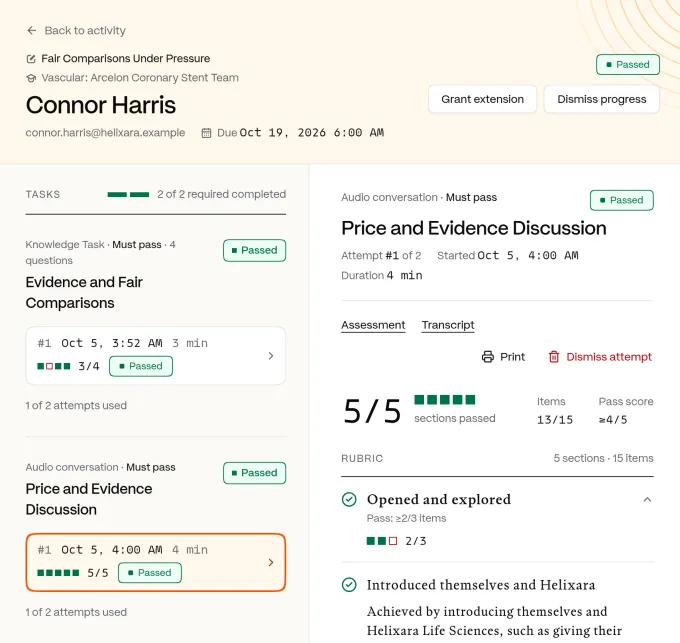
For a record of submissions, use Engagement Export in cohort or organisation Insights. Select the activities, turn on Task-level status and Submission and feedback details, then select Export CSV. The submission details include all recorded attempts for each task in the selected activities, with written answers and conversation transcripts. A learner’s retry does not replace their earlier submission in these details. Dismissed attempts also stay, with their dismissal time. They do not count towards the learner’s current task status.
The activity’s Export control gives a results summary. Use the engagement submission details when you need the answers from each attempt. Evaluation responses also have a separate Survey Results report and CSV export for each assignment.
Review performance with Insights goes further: it compares results across a cohort, shows which rubric criteria learners miss, and helps you follow up with individual learners.
Upgrade deprecated tasks
Section titled “Upgrade deprecated tasks”If the editor shows a deprecated reflection task, its questions are read-only. Select Review upgrade to see which tasks the upgrade will remove. The dialog lists each task by name and explains that its questions will not be copied to a Knowledge task. Select Remove listed tasks, then save the activity to publish a version without those tasks. You can also use the task’s delete button. Existing assignments and saved submissions keep their tasks. Use Add Task, then Reflection, if you want a new Knowledge question set.
If the editor shows a deprecated Graded Written task, select Upgrade. Select Convert to move the question to a Knowledge task, or remove the task. Then save the activity.
When you duplicate an activity, a deprecated reflection task becomes a Knowledge task in the copy. The duplicate fails if the activity has a deprecated feedback task or a Graded Written task, or if the reflection cannot be converted. The error gives the task name. Open the source activity, upgrade or remove that task, and save before you try again.