
Complete your first activity
Find your assignment, test your microphone, hold a conversation with a character, and use the feedback to improve your next attempt.
For learners
An activity is a set of tasks that help you prepare, practise, and reflect. Knowledge tasks contain reading or questions. Experience tasks are spoken conversations with a simulated person, and your task list shows each one as Audio conversation or Video conversation.
For a conversation you speak aloud, so find a quiet place and have a microphone ready. A headset gives the clearest result.
Find your assignments
Section titled “Find your assignments”After you sign in, the Assignments page opens. To come back to it later, open the sidebar and select Assignments under For You.
Your work is sorted into Open Assignments, Overdue, Always Available, Past Assignments (overdue assignments that you did complete), and Closed Assignments. Each row has one button for the next step: Get started, Continue, or Review.
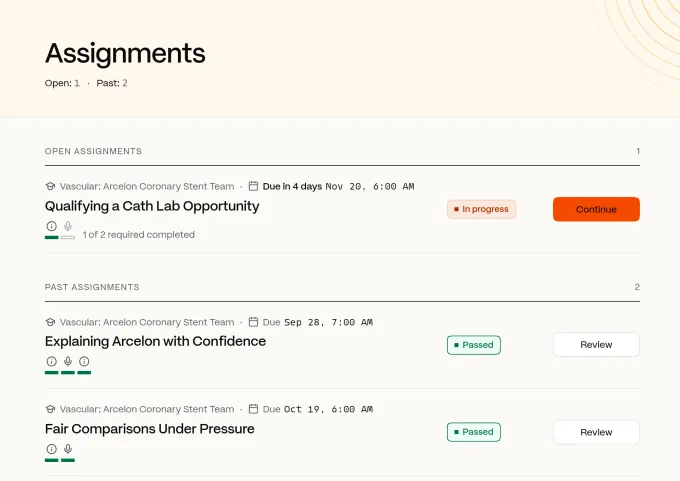
No assignments means nothing is open for you at the moment. An assignment appears on its open date. If you expected to see one, ask your educator, or check Sign-in and access.
Open the activity
Section titled “Open the activity”The button on an assignment row opens its activity page. The top of the page shows your cohort, the due date (or Always available), your status and progress, and the instructions. After the close date it also shows Closed and the date.
Each task has its own row under Tasks, with its status (Not started, In progress, or Completed) and the attempts you have used. Start task, Continue task, and Retry task move you through the work.
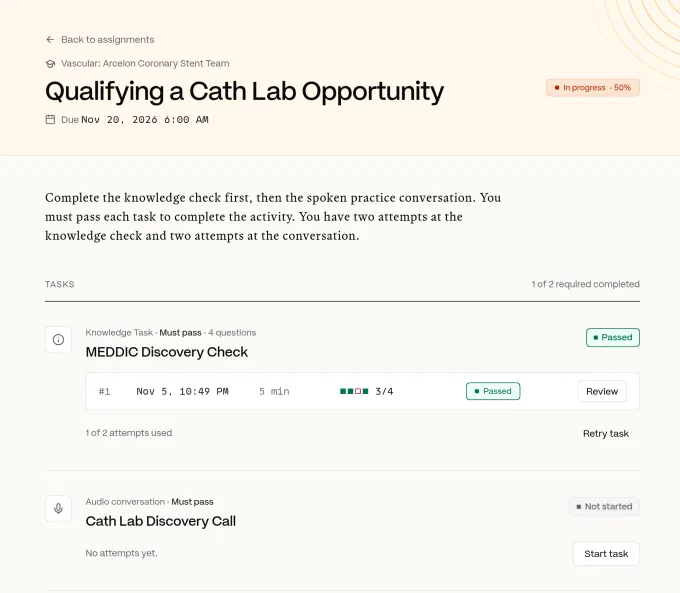
A graded task shows Passed or Not passed once grading finishes. Your educator can hold results back, and then you see Results not released until they release them.
Tasks can be required or optional, and some limit how many attempts you get. The activity instructions tell you which is which, so read them first.
Complete reading and questions
Section titled “Complete reading and questions”Open a Knowledge task and read its content. Content blocks can include formatted reading material, embedded images, audio, and video. Every question needs an answer before you can submit. Some questions ask you to select answers, some need a written answer, and some ask you to fill gaps in a passage. A reflection asks for your own thoughts, and those answers are not judged for quality.
In written answer fields, you can also select the microphone button to dictate your response aloud. Dictated text is inserted into the field so you can review and edit it before submitting.
Submit Answers saves your work. Questions that have correct answers or a rubric show their results and feedback when assessment finishes. If the task is reading only, select Complete Task when you have finished.
Test your microphone
Section titled “Test your microphone”A conversation task opens on the character you will meet and the task instructions. Select Test before your first conversation on any device. It is quicker than finding out mid-conversation that the character cannot hear you.
- Confirm your name and select Confirm name. Your name is used to improve speech recognition.
- When the Microphone Test opens, allow microphone access if your browser asks.
- Tap the microphone button and say the suggested phrase, then tap again to stop. You can also hold the button while you speak and release it.
- Read the transcript of what SimConverse heard. The speaker icon plays your recording back. If the transcript is right, select Sounds Good.
Once a microphone has passed in this browser, the test offers Continue and you can skip the recording.
If the test cannot find a microphone, Microphone and audio lists the fixes.
Hold the conversation
Section titled “Hold the conversation”Select Start Task. The Microphone Test opens at the start of every conversation. Complete it, or select Continue if your microphone has already passed.
You talk by recording. Tap the microphone button to start, and tap again when you have finished speaking. You can also hold the button while you speak and release it. On a keyboard, tap or hold the P key in the same way. The character answers aloud, and stops speaking as soon as you start to record.
Treat it as the real situation. The character stays in role. Introduce yourself, ask questions, and respond to what you hear. Some conversations include up to four characters speaking together, or open an interactive App (such as a simulated chart or record) beside the audio controls.
Use actions and attachments. If a scenario includes actions (physical steps) or attachments (such as lab results or imaging), select them from the panel. In Genius mode scenarios, you can also trigger actions or open attachments simply by saying what you are doing or asking for a result aloud—even when an item is hidden from the list until you ask for it.
Watch the countdown. Every conversation has a time limit. The countdown at the top shows the active conversation time you have left, so bring the conversation to a close before it reaches zero.
When you are done, select End conversation & review (an exit icon on small screens), then Yes, end conversation.
If SimConverse shows Please try again later, your organisation has reached the number of conversations it can run at once. Wait a moment and select Try again. Conversation issues explains this and the other screens that can interrupt a conversation.
Read your feedback
Section titled “Read your feedback”When the conversation ends, you see the transcript. When audio was recorded, use Conversation playback above the transcript to play back the recording and jump to any moment along the waveform. Continue to feedback opens the feedback for each rubric criterion, and Back to transcript returns you to the conversation, so you can find the moment a criterion refers to. Grading takes a little time, so some results may still be arriving when the page opens.
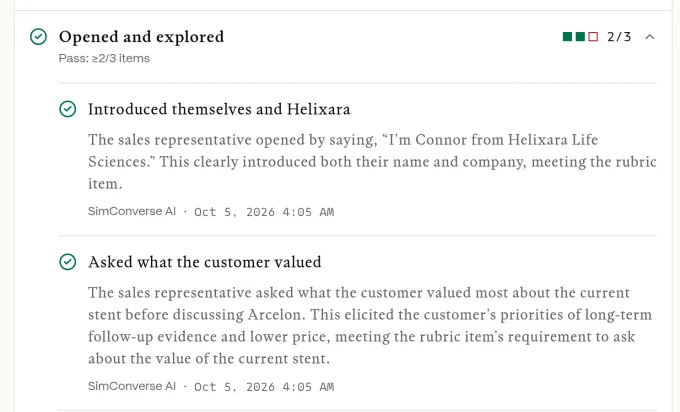
If your educator holds results back, the feedback appears once they release it.
Return to activity takes you back to the task list. While you have attempts left, Retry task is at the bottom of the review page and on the task row. Review on an attempt row reopens any completed attempt. After an activity closes, each task row shows Closed and your work is read-only.
Evaluate the activity
Section titled “Evaluate the activity”Some activities end with an Evaluation step. It appears once you have met the other requirements of the activity, and the activity is complete only when you submit it. Your saved answers stay available on the activity page.