
Sign in to SimConverse
Find your organisation on the login page, then sign in with single sign-on, a one-time code by email, or a password.
For learners, educators, and admins
Your organisation decides how you sign in: with single sign-on (SSO), with a one-time code sent to your email, or with a password. The login page first works out which organisation you belong to, then offers the methods that your organisation has turned on.
If you use SimConverse through your learning management system (LMS), you can skip this page. Open the SimConverse activity in your course, and you are signed in with your course identity.
Find your organisation
Section titled “Find your organisation”Your organisation’s direct login link is the quickest way in, because it opens the right sign-in page straight away. Your educator or administrator can give it to you. Without it:
- Open the SimConverse address that your organisation gave you.
- Enter your organisational email address and select Continue.
- If one organisation matches, sign-in continues automatically. If several match, choose yours from the list.
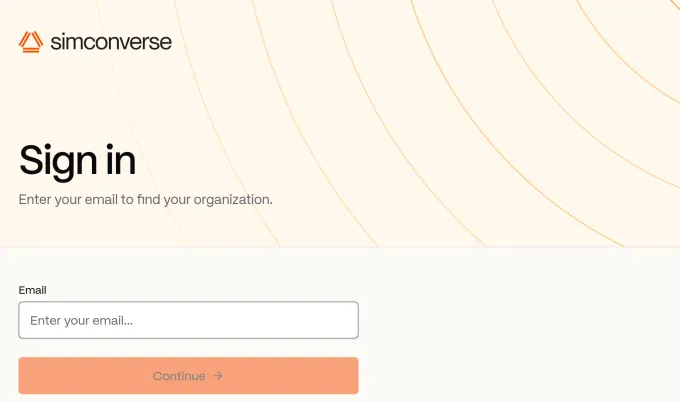
An account is found only by its exact email address, and only after it exists:
- No organizations found for this email. Use your organization’s login link, or contact your administrator. usually means a different address is on your account. Try the address where you receive SimConverse emails.
- If your organisation uses SSO and you have never signed in, you may have no account yet for the search to find. It is created on your first SSO sign-in, so use the direct login link that first time.
Sign-in and access covers the other messages you might see.
Choose a sign-in method
Section titled “Choose a sign-in method”The page you see next depends on what your organisation has turned on.
- With one SSO provider and nothing else, you are sent straight to your organisation’s sign-in page. You see a Signing in page for a moment.
- With more than one method, the SSO providers come first, under Sign in with your identity provider, one button for each. Sign in with email instead leads to email codes and passwords, and Use single sign-on instead takes you back to the SSO buttons.
- With no SSO, you get the email sign-in form directly.
Sign in with SSO
Section titled “Sign in with SSO”Select your identity provider’s button and sign in the way you usually do at your organisation. That page belongs to your organisation, so its IT team handles password resets and locked accounts.
Sign in with an email code
Section titled “Sign in with an email code”- Confirm your email address and select Send code. If you came from the email search, the code may already have been sent.
- Look for an 8-digit code from
no-reply@simconverse.comin your inbox. - Enter the code. It is checked as you type the last digit.
Each code works once and expires after a short time. If nothing arrives within a minute, check your spam folder, then select Resend code.
Some organisations keep email sign-in for Admins only. In that case the email field is locked, and you select Send code yourself.
Sign in with a password
Section titled “Sign in with a password”If the page opens on the email code form, select Sign in with password instead. Enter your email address and password, then select Sign in.
Forgot password? resets the password with a code sent to your email. Use email code instead signs you in without the password, when your organisation allows email codes.
Your first page depends on your role
Section titled “Your first page depends on your role”| You are | Your first page |
|---|---|
| A learner | Assignments, ready for your first activity |
| A Manager of a cohort | Cohorts, under For You |
| An Admin | All Cohorts, under Administer |
If you followed a link to a particular page before you signed in, you are taken back to that page instead.
You stay signed in for up to 30 days. To change the interface language (English, Spanish, French, German, or Simplified Chinese), theme, or Content font, select Help and settings at the bottom of the page. Select Log out in the same menu to sign out sooner.
If you do not yet belong to an organisation and want to evaluate SimConverse, see Billing, plans, seats, and credits to start a free trial.