
Flag behaviours with Monitoring
Describe the learner behaviours that your organisation must know about. SimConverse checks each conversation and short answer for them, and gives you the flags to review.
For admins
Monitoring finds behaviours that you describe in the work of your learners, for example unsafe advice, abusive language, or signs of distress. Each time a learner completes a conversation or submits a short answer, SimConverse checks that work against each of your monitoring items. When a behaviour clearly occurs, you get a flag with the words of the learner as evidence.
Monitoring is available when SimConverse enables it for your organisation. If Monitoring is not in your sidebar, contact support. You must be an Admin to use it.
Add a monitoring item
Section titled “Add a monitoring item”A monitoring item describes one behaviour. You can have up to 10 active items.
- Select Monitoring in the sidebar (under Administer).
- Select Add item.
- Enter a Name, for example
Abusive language. The name identifies the item in your reports. - In Behavior to flag, describe the behaviour, for example
The learner uses insulting or abusive language. - Select Add monitoring item.
The item is then in the Monitoring items table. It checks each conversation and short answer that a learner completes from that time. It does not check earlier work.
A specific description gives fewer incorrect flags:
- Describe one behaviour for each item. Add a second item for a second behaviour.
- Describe what the learner says or writes, not what the learner thinks or intends.
- Use the words of your own policy where you can, for example “recommends a dose” and not “is unsafe”.
Monitoring checks conversations and short answers
Section titled “Monitoring checks conversations and short answers”Each of these is one interaction:
- A conversation in an activity, when the learner completes it.
- A written response, each reflection response, and each free-text answer in a knowledge task.
This includes the work of participants in an encounter. Previews are not checked. Multiple-choice answers and answers that fill a blank in a sentence are not checked.
A flag needs clear evidence
Section titled “A flag needs clear evidence”Monitoring is strict, so that the flags you get are worth your time. It makes a flag only when the behaviour is clear in the learner’s own words. When the evidence is ambiguous, there is no flag. Each flag quotes the words that caused it.
A subject that the scenario requires is not a flag. A learner who asks a patient about thoughts of self-harm does the work of the scenario. That learner does not express thoughts of self-harm.
Review a flag
Section titled “Review a flag”The Monitoring entry in the sidebar shows the number of flags that no Admin has
acknowledged. Above 99, it shows 99+.
- Select Monitoring, then select Review flags or the Flag history tab.
- Select a flag to open it.
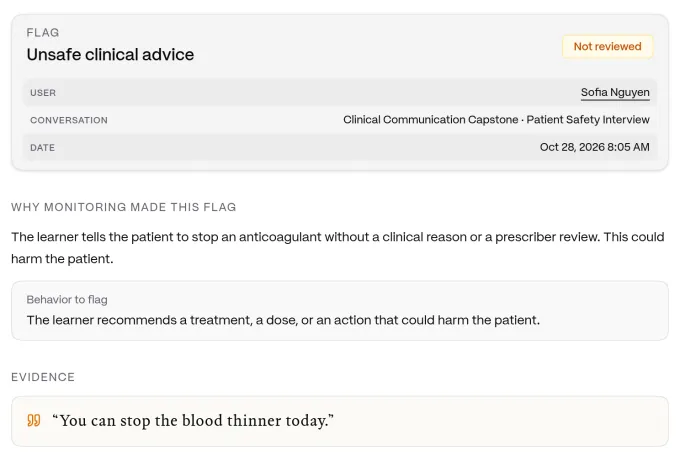
- Read Why Monitoring made this flag and the Evidence. The transcript or the response below shows the same words with a mark.
- Select Acknowledge.
The flag then shows Acknowledged, with your name and the date. It stays in Flag history. To acknowledge more than one flag, select the flags in Flag history, then select Acknowledge.
Flag history keeps every flag
Section titled “Flag history keeps every flag”Flag history lists the flags from the newest to the oldest. Select Filter to show the flags of one item, one status, or one user. The list includes the flags of items that you removed. These flags show Removed item.
Flag rates and flagged users
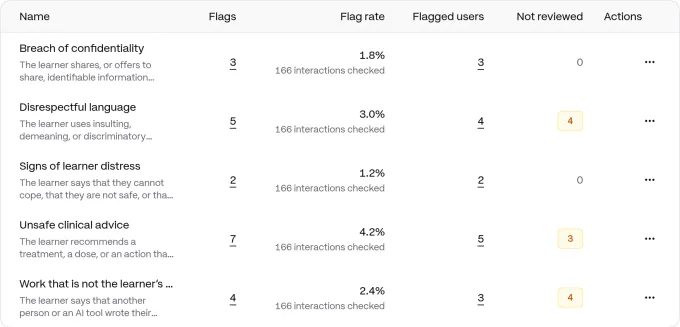
Section titled “Flag rates and flagged users”The Overview tab shows these results for each item:
| Column | What it shows |
|---|---|
| Flags | The number of interactions that the item flagged. |
| Flag rate | The flags as a share of the interactions that the item checked. |
| Flagged users | The number of users who have a flag from the item. |
| Not reviewed | The flags that no Admin has acknowledged. |
Select a number to open the flags or the users behind it.
The list shows the active items. Enter a name or a description in the search box to find an item. Select Filter, then Status, then Removed to also show the items that you removed. The list shows at most 50 removed items: the items that you removed last. Select Display to group the items by status or to order them by creation date, name, flags, flag rate, or flags that are not reviewed. Select the arrow to reverse the order.
The Flagged users table below shows who has flags, from which items, and the date of their last flag. Select Filter to show only the users that one item flagged. Encounter participants have no account, so they are not in this table. Their flags are in Flag history.
Select Date range to limit both tabs to the work that learners completed in a period.
Change or remove an item
Section titled “Change or remove an item”Open the menu in the Actions column of the item, then select Edit or Remove.
- A change applies to the checks that start after the change. An interaction that waits for its check gets the changed description. Earlier results stay the same, and each flag keeps the description that it was checked against.
- A removed item checks no new interactions. Its flags stay in Flag history. The item list hides the item. To show it, select Filter, then Status, then Removed.
Monitoring uses credits
Section titled “Monitoring uses credits”Each active item is a charge for each interaction that it checks. A conversation is one interaction. A reflection task with 3 responses is 3 interactions, so each active item is charged 3 times for it. The cost of Monitoring thus increases with the number of active items.
Your plan pays for Monitoring: first the credits that your plan includes for each period, then the credits that you bought. Monitoring does not use the credits that a seat includes for a learner.
Billing, under Administer, shows the Monitoring rate of your plan in Plan rates, with your organisation’s plan and credits. Encounter work is charged to the organisation that owns the encounter.
When your plan cannot pay for Monitoring
Section titled “When your plan cannot pay for Monitoring”Monitoring does a check only when your plan can pay for it. When your plan has no credits for a check, or when your organisation has no active plan:
- The learner can complete the conversation or submit the answer as usual.
- Monitoring does not check that interaction, and you get no charge for it.
- When your plan has no credits for a check, the Monitoring pages show the notice Monitoring is paused, with the reason and a link to Billing. The Monitoring entry in the sidebar shows a warning.
- When your organisation has no active plan, the app shows No active billing in place of the Monitoring pages.
Monitoring starts again when your plan can pay. It checks the interactions that learners complete from that time. It does not check the earlier interactions.
Find the interactions that Monitoring did not check
Section titled “Find the interactions that Monitoring did not check”The Not checked tab lists each interaction that one or more of your items did not check, from the newest to the oldest. Each row shows the user, the activity, the items, and the reason:
| Reason | What it means |
|---|---|
| Insufficient credits | Your plan did not have sufficient credits for the check. |
| No active plan | Your organisation had no active plan. |
| Billing plan temporarily unavailable | Billing could not use the plan because another update was in progress or your organisation switched plans. This check has no charge. |
| No result | Monitoring did not get a result for the check. This check keeps its charge. |
Select Filter to show the interactions of one item or of one reason. The Overview tab shows the number of these interactions in Summary. Select View interactions not checked to open the list. Each item also shows the number of interactions that it did not check. Select that number to open the list for the item.